Why Every Teacher Needs a Good Classroom Timer
Time management in the classroom is one of the most powerful levers a teacher can pull to improve both learning outcomes and classroom behavior. When students can see a countdown clock, something shifts in the room. Off-task chatter drops, urgency increases, and the pace of work picks up naturally — without the teacher needing to constantly prompt students to stay focused. A visible timer communicates clear expectations without a word. It hands students the responsibility of managing their own pace, which is itself an important life skill.
Educational psychologists describe this phenomenon as "time scarcity salience" — when time is made visible and limited, human brains shift into a more focused, goal-directed mode. Students who might dawdle for 20 minutes on an open-ended task complete the same work in 10 minutes when a timer is projected at the front of the room. This is not pressure in a harmful sense; it's the simple psychological reality that defined boundaries help the human brain prioritize and execute.
How to Use a Classroom Timer Effectively
The key to using a classroom timer well is intentionality. Before you start the countdown, make sure students know exactly what they should be doing, what a successful outcome looks like, and what happens when time is called. Announce the activity, display the label on the timer, then start the clock. Give a verbal warning when about two minutes remain so students can wrap up their thinking. When the alarm sounds, enforce the time boundary consistently — students learn quickly whether the timer is a real deadline or a suggestion.
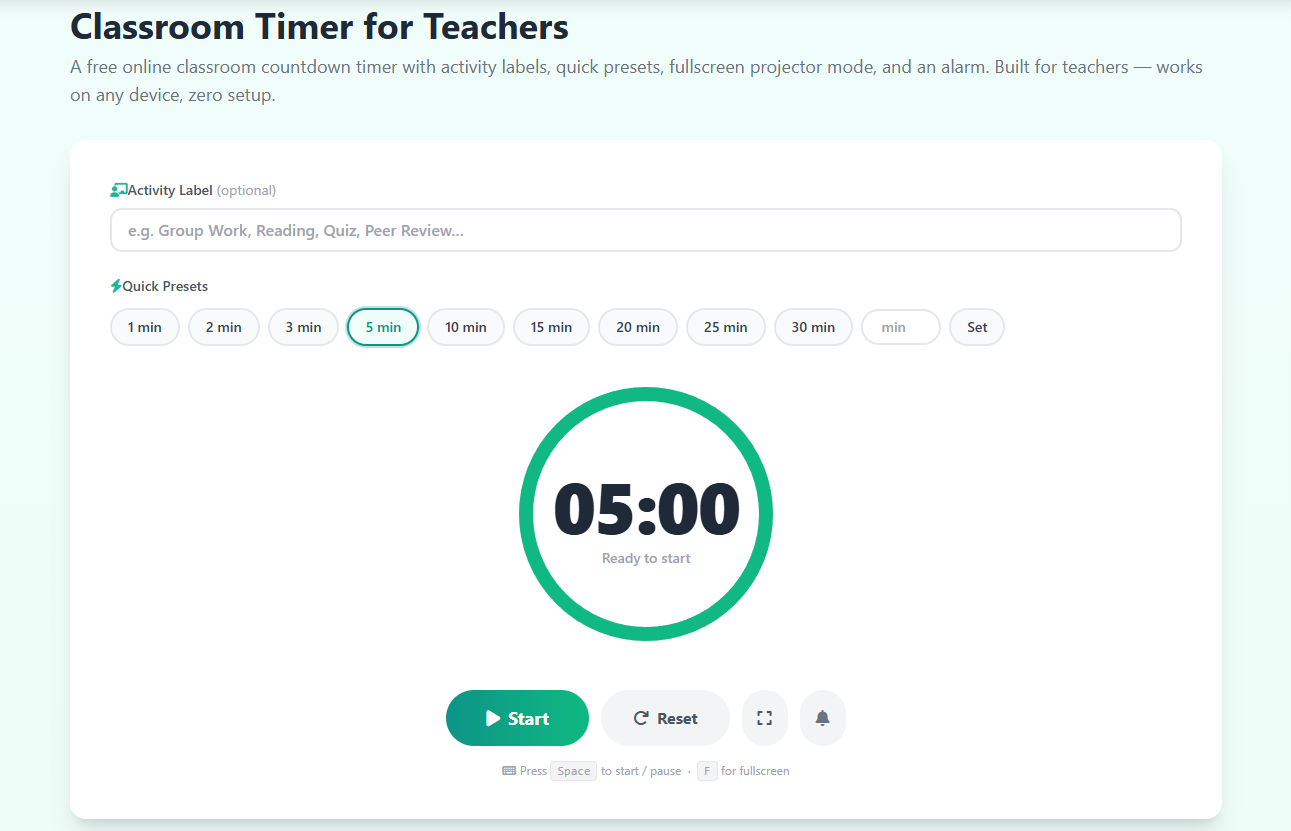
The activity label feature on this timer is particularly useful for visual learners and students with attention challenges. Seeing "Group Work – 15:00" projected at the front of the room simultaneously answers two questions that otherwise cause constant interruption: "What are we doing?" and "How long do we have?" With both answers visible, students can self-regulate without needing constant teacher redirection.
Classroom Timer for Differentiation and Flexible Grouping
One underrated use of classroom timers is managing differentiated instruction. When the class is split into groups working at different paces or on different tasks, a single projected timer gives every group a shared temporal anchor. You can set the timer for the duration of your first rotation, pull a small group for direct instruction, and trust that the other groups are working to the countdown — no need to watch the clock yourself. When the alarm fires, everyone transitions simultaneously, making rotation management dramatically smoother.
Using Fullscreen Mode with a Projector or Interactive Whiteboard
The fullscreen button expands the timer to fill your entire display, making the countdown clearly readable from the back of even a large classroom. Project it on your interactive whiteboard, classroom TV screen, or second monitor before distributing task instructions. The progress bar along the bottom of the fullscreen view gives students an instant visual cue of how much time remains — without needing to calculate from the number. The color-coded timer automatically shifts to amber in the final minute and red in the last 30 seconds, providing a visual warning even students who aren't reading the clock can immediately register.
Research on Timers and Student Productivity
Studies published in educational journals consistently show that externally visible time constraints improve on-task behavior and work completion rates in students from elementary through university level. A 2019 meta-analysis of time management interventions in academic settings found that visible timers were among the highest-impact, lowest-cost interventions available to classroom teachers. For shorter focus bursts, consider our 5 Minute Timer and 10 Minute Timer. For personal productivity with automatic breaks, the Pomodoro Timer is an excellent complement.